How to populate the Business Concept Map
Overview
The Business Concept Map in the Marketplace visualizes your organization's business terminology as an interactive graph with concepts, relationships, definitions, synonyms, and linked Products.
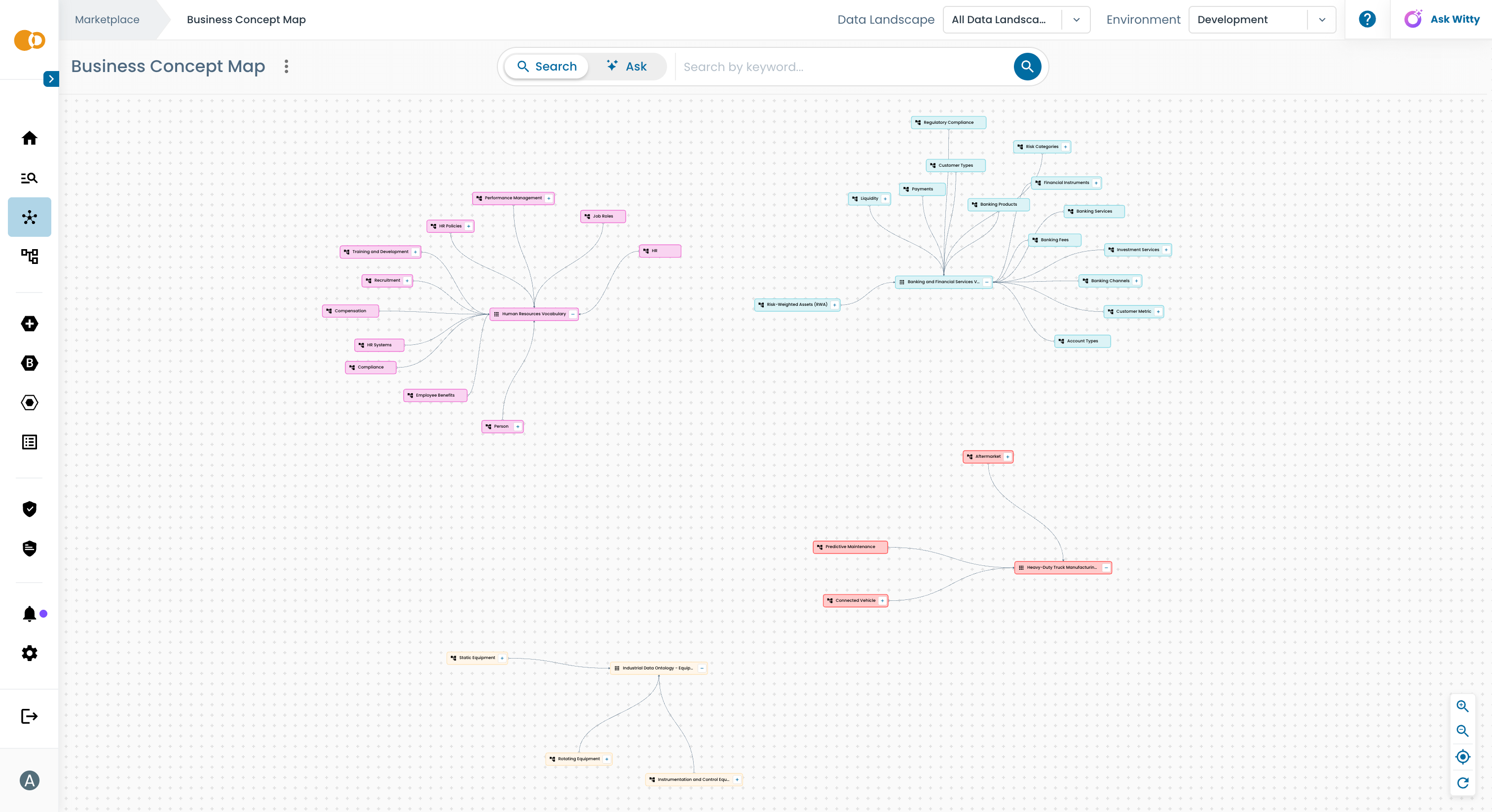
This guide explains how to provide those concepts so they appear in the Business Concept Map.
The Business Concept Map can be enabled under Administration > Configuration > Marketplace > Business Concepts Map; see the Business Concepts configuration guide.
If disabled, the Marketplace UI will not display the map.
Prerequisites
Before following this guide, make sure you understand:
Knowledge Graph Manager (KGM)
KGM backs the Business Concept Map by bringing together knowledge supplied through Source Adapters. Platform Teams configure ingestion and choose a Business Concept Model that matches the source vocabulary and determines how this knowledge appears in the map.
Learn more about: Knowledge Graph Manager (KGM)
To enable Ask, configure the embedding provider and create the semantic index by following How to Set Up Business Concept Semantic Search.
Make sure the configured KGM base url correctly points to the KGM service.
Source Adapter
A KGM Source Adapter is a small service you build that:
- Reads your business concepts and relations from a source (a glossary, catalog, database, spreadsheet, etc.)
- Converts them into a graph expressed in the JSON-LD format
- Provides this JSON-LD to KGM so it can ingest it
If you do not know how Source Adapters work, please read:
RDF
RDF (Resource Description Framework) is the standard data model used to represent information as a graph of resources and relationships.
In RDF, data is expressed as triples:
- Subject — the resource being described
- Predicate — the property or relationship
- Object — the value or another resource
Example (conceptually):
Concept ── hasDefinition ──► "A business term description"
RDF is the foundation on which vocabularies like SKOS (see section below) are built.
While KGM can ingest and store knowledge graphs expressed with any RDF-compliant vocabulary, the Business Concept Map relies on RDF semantics to traverse concepts, schemes, and relationships as a connected graph.
SKOS
SKOS (Simple Knowledge Organization System) is a widely adopted vocabulary for modeling glossaries and taxonomies via the RDF
SKOS is one vocabulary you can use to supply concepts. To display SKOS data, use a Business Concept Model that maps the corresponding types and predicates.
Learn more about SKOS on the official SKOS reference website
Supported Vocabularies
The Business Concept Map is designed to work with concept graphs expressed in RDF.
KGM can ingest and store concepts using any RDF vocabulary.
The active Business Concept Model defines how the supplied vocabulary is used to determine:
- concept labels
- descriptions
- synonyms
- parent/child hierarchy
- relationships between concepts
- root concept membership
The model must match the types and predicates returned by your Source Adapter. Ingesting valid RDF alone does not determine which information appears in the map.
How to Provide Concepts to the Business Concept Map
The steps below apply to SKOS, OWL, or a custom RDF vocabulary.
To make your business concepts appear in the Business Concept Map, create and register a Source Adapter that supplies your graph as JSON-LD.
A complete process includes:
-
Create a Source Adapter
Implement a service that retrieves your business concepts from their authoritative source (glossary, spreadsheet, database, or catalog) and converts them into a JSON-LD graph. -
Expose the JSON-LD graph
Your Source Adapter must provide the full concept graph in JSON-LD format, following the Source Adapter contract. -
Register the Source Adapter in KGM
Register your Source Adapter in the KGM configuration and configure its ingestion schedule. -
Configure the Business Concept Model
Activate a model matching your RDF vocabulary. Check concept types, labels, membership, hierarchy, and relationship mappings.
-
Verify the map
After scheduled ingestion completes, open the enabled Business Concept Map and check that the expected concepts, details, and relationships appear. Search for known labels and verify links to published Products.
What the Business Concept Map displays
The graph distinguishes roots, concepts, properties, and labeled relationships. The Map explanation describes these elements and how users explore them.
Example: Interpreting SKOS
With a model configured for SKOS, the following types and predicates can provide the map's concepts and relationships. Other vocabularies use the mappings defined by their Business Concept Model.
| Visual Element | SKOS Field | Meaning |
|---|---|---|
| Root | skos:ConceptScheme | A group/vocabulary |
| Concept | skos:Concept | A business term |
| Node label | skos:prefLabel | Main name shown in the graph |
| Definition | skos:definition | Explanation shown in details panel |
| Synonyms | skos:altLabel | Shown in details panel |
| Hierarchical lines | skos:broader / skos:narrower | Hierarchical structure |
| Relationship lines | skos:related | Non-hierarchical links |
| Root concept membership | skos:inScheme | Determines which root concept a concept belongs to |
| Related Products | Product descriptor match | Products and Consumables associated with the selected concept |
Minimal SKOS JSON-LD Example (Copy & Adapt)
Below is a SKOS example to use with the built-in SKOS model; the rest of the guide will refer to it (concepts apply for other models as well):
- multiple Concept Schemes (the "entry points" in the graph)
- multiple Concepts
- hierarchical relationships (
skos:broader/skos:narrower) - related concepts across different roots (
skos:related) - synonyms (
skos:altLabel) - definitions (
skos:definition) - correct SKOS JSON-LD structure using a clean
@context
You can use it as a template and replace labels/IDs with your own.
For relationship fields that point to another node, use JSON-LD node references such as { "@id": "https://example.com/schemes/hr" } rather than plain strings.
JSON-LD Example
{
  "@context": {
    // Define the skos prefix
    "skos": "http://www.w3.org/2004/02/skos/core#"
  },
  "@graph": [
    /* ------------------------------
       SCHEME 1: HRVocabulary
       ------------------------------ */
    {
      "@id": "https://example.com/schemes/hr",
      "@type": "skos:ConceptScheme",
      "skos:prefLabel": "HRVocabulary"
    },

    {
      "@id": "https://example.com/concepts/performance-management",
      "@type": "skos:Concept",
      "skos:prefLabel": "Performance Management",
      "skos:altLabel": ["Employee Performance"],
      "skos:definition": "Processes to ensure employee goals align with organizational objectives.",
      "skos:inScheme": { "@id": "https://example.com/schemes/hr" },
      "skos:narrower": [
        { "@id": "https://example.com/concepts/employee-engagement-survey" }
      ],
      "skos:related": [{ "@id": "https://example.com/concepts/liquidity-risk" }]
    },

    {
      "@id": "https://example.com/concepts/employee-engagement-survey",
      "@type": "skos:Concept",
      "skos:prefLabel": "Employee Engagement Survey",
      "skos:broader": {
        "@id": "https://example.com/concepts/performance-management"
      },
      "skos:inScheme": { "@id": "https://example.com/schemes/hr" }
    },

    /* ------------------------------
       SCHEME 2: BankingVocabulary
       ------------------------------ */
    {
      "@id": "https://example.com/schemes/banking",
      "@type": "skos:ConceptScheme",
      "skos:prefLabel": "BankingVocabulary"
    },

    {
      "@id": "https://example.com/concepts/liquidity-risk",
      "@type": "skos:Concept",
      "skos:prefLabel": "Liquidity Risk",
      "skos:definition": "The risk that a company may not be able to meet short-term financial obligations.",
      "skos:inScheme": { "@id": "https://example.com/schemes/banking" },
      "skos:narrower": [
        { "@id": "https://example.com/concepts/intraday-liquidity" }
      ],
      "skos:related": [
        { "@id": "https://example.com/concepts/performance-management" }
      ]
    },

    {
      "@id": "https://example.com/concepts/intraday-liquidity",
      "@type": "skos:Concept",
      "skos:prefLabel": "Intraday Liquidity",
      "skos:broader": { "@id": "https://example.com/concepts/liquidity-risk" },
      "skos:inScheme": { "@id": "https://example.com/schemes/banking" }
    },

    /* ------------------------------
       SCHEME 3: EquipmentVocabulary
       ------------------------------ */
    {
      "@id": "https://example.com/schemes/equipment",
      "@type": "skos:ConceptScheme",
      "skos:prefLabel": "EquipmentVocabulary"
    },

    {
      "@id": "https://example.com/concepts/rotating-equipment",
      "@type": "skos:Concept",
      "skos:prefLabel": "Rotating Equipment",
      "skos:definition": "Mechanical equipment that rotates during operation, such as turbines or pumps.",
      "skos:inScheme": { "@id": "https://example.com/schemes/equipment" },
      "skos:narrower": [
        { "@id": "https://example.com/concepts/industrial-pump" }
      ]
    },

    {
      "@id": "https://example.com/concepts/industrial-pump",
      "@type": "skos:Concept",
      "skos:prefLabel": "Industrial Pump",
      "skos:broader": {
        "@id": "https://example.com/concepts/rotating-equipment"
      },
      "skos:inScheme": { "@id": "https://example.com/schemes/equipment" }
    }
  ]
}
What this example covers:
- Three root concepts → three "root" concepts with no visible parent in the graph (you can hover over them to see their
Root Conceptbadge); these are the entry points in the graph exploration:- HRVocabulary
- BankingVocabulary
- EquipmentVocabulary
- Hierarchy (parent/children) inside each root concept:
- Performance Management → Employee Engagement Survey
- Liquidity Risk → Intraday Liquidity
- Rotating Equipment → Industrial Pump
- Cross-root related concepts:
- Performance Management ↔ Liquidity Risk (this creates a cross-root line in the graph)
- Concept details such as synonyms and definitions:
skos:altLabelskos:definition
- Root membership via
skos:inSchemewhich determines which "root concept" each concept appears under.
You can build your actual business concept map by modifying this example and returning the resulting JSON-LD from your Source Adapter.
How Search and Ask work in the Business Concept Map
The search bar in the Business Concept Map supports two modes:
- Search uses text matching when users know words contained in a concept's configured content.
- Ask uses semantic similarity when users describe a process, intent, or business need without knowing the concept's exact wording.
The Marketplace finds matching business concepts according to the active model and search configuration.
For a Concept to appear in search results, two conditions must be met:
1. The Concept must contain searchable text
KGM indexes only literal fields.
For a SKOS model, typical searchable fields include:
skos:prefLabel(required)skos:altLabel(synonyms)skos:definition(free-text description)
These fields are what users search over and what KGM uses to build semantic embedding content.
2. Activate a Matching Business Concept Model
Use the label, description, and optional synonym predicates from your vocabulary in the Business Concept Model, together with the corresponding concept types.
Activating the model, or editing the active model, automatically configures these search predicates and types. You do not need to maintain a separate list of model fields in KGM configuration. When these indexed fields or types change, a background reindex is requested automatically; allow it to complete before checking existing concepts.
See search configuration for scheduled index maintenance and Source Adapter configuration for ingestion schedules.
What Search and Ask do
When a user types a query:
- The Concept Map sends the query and selected
textorsemanticmode to the Marketplace Business Concepts API. - Marketplace delegates search to KGM and applies the active Business Concept Model.
- The UI displays the admitted matching Concepts ranked by text or semantic relevance.
Ask requires semantic search to be enabled, a semantic model to be configured, and a completed embedding build. KGM builds embeddings asynchronously and keeps the previous completed generation searchable while a new one is being prepared. Follow How to Set Up Business Concept Semantic Search for the complete Platform Team procedure, including optional synchronization with the Product Search embedding model.
Best practices to make Concepts easily searchable
- Always include a clear label using the predicate defined by your model
- Add synonyms using the corresponding predicate, such as
skos:altLabelfor SKOS - Avoid cryptic or internal-only naming
- Ensure labels reflect what Product teams will use in descriptors (which also improves Product linking)
Search works best when Concepts are written in natural, business-friendly language.
How Products and Consumables are linked to Concepts
The Business Concept Map can display Products and linked Consumables that are associated with a selected Concept.
Before proceeding with this topic make sure you understand How to Integrate Business Concepts
When a user selects a Concept and clicks Products in the details panel:
- The Business Concept Map retrieves Products and linked Consumables in the Marketplace whose descriptor was linked to the selected Business Concept or any of its members or descendants, up to the configured Related Products Max Depth.
- Every Product or Consumable found is displayed as related to that Concept.
This allows users to quickly discover which Products and Consumables are connected to a business meaning, and ensures consistent alignment between business terminology and technical assets.
Business Concept Map Domains
Root Concepts can be further organized into Domains, representing business areas such as Banking or HR. Domains are optional and use a fixed Witboost vocabulary, independently of the active Business Concept Model. This vocabulary uses the wb prefix, declared as https://witboost.com/type# in the JSON-LD @context.
To add a domain, include a resource of type wb:Domain in your Source Adapter's JSON-LD graph. Use rdfs:label for its name and optionally rdfs:comment for its description. Link each Root Concept to its domain with wb:partOfDomain, using a JSON-LD node reference.
Each Root Concept can belong to only one Domain in the Business Concept Map. If multiple wb:partOfDomain links point to resources of type wb:Domain, the Map uses the domain whose IRI comes first in lexicographical order and ignores the other links.
Domains are hierarchical: a domain can contain subdomains. Use wb:subDomainOf on a child domain to reference its parent. In the following example, Retail Banking is nested under Banking, and the Root Concept belongs to Retail Banking.
{
  "@context": {
    "wb": "https://witboost.com/type#",
    "rdfs": "http://www.w3.org/2000/01/rdf-schema#",
    "skos": "http://www.w3.org/2004/02/skos/core#"
  },
  "@graph": [
    {
      "@id": "https://example.com/domains/banking",
      "@type": "wb:Domain",
      "rdfs:label": "Banking",
      "rdfs:comment": "Business vocabulary for banking activities."
    },
    {
      "@id": "https://example.com/domains/retail-banking",
      "@type": "wb:Domain",
      "rdfs:label": "Retail Banking",
      "wb:subDomainOf": { "@id": "https://example.com/domains/banking" }
    },
    {
      "@id": "https://example.com/schemes/retail-banking",
      "@type": "skos:ConceptScheme",
      "skos:prefLabel": "RetailBankingVocabulary",
      "wb:partOfDomain": { "@id": "https://example.com/domains/retail-banking" }
    }
  ]
}
This example uses a SKOS Root Concept; for other vocabularies, use the root type and label predicate configured in your active model. After KGM ingests the updated graph, verify the domains and their associated Root Concepts in the Map.
Troubleshooting
Check your data against the active Business Concept Model. The SKOS fields below apply to the example in this guide; for another vocabulary, check the equivalent types and predicates in your model.
Use this section to diagnose why concepts, root concepts, or relationships may not appear in the Business Concept Map.
Root concept is not shown (graph "root" missing)
Possible causes:
- The root is not defined as
@type: skos:ConceptScheme
A concept is missing from the graph
Possible causes:
- Missing or incorrect type (must be
@type: skos:Concept) - Missing
skos:prefLabel - The concept is not linked to any root via
skos:inScheme
Hierarchy lines do not appear (no parent/child links)
Possible causes:
- Missing
skos:broaderorskos:narrower - The relationship references the wrong concept ID
Relationship lines between concepts do not appear
Possible causes:
- Missing the configured relationship predicate (e.g.
skos:relatedfor the direct relationshiprelatedin the SKOS preset) - Related concept ID is incorrect or not present in the graph
Definition not shown in the left panel
Possible cause:
- Missing
skos:definition
Synonyms not shown
Possible cause:
- Missing
skos:altLabel
Concept appears but is not found via search
Possible causes:
- The concept has no textual fields (e.g., label, synonyms, definition)
A Product or Consumable does not appear as related for a business concept
Possible causes:
-
The Product or Consumable descriptor contains business concepts that do not exactly match a concept's IRI or
skos:prefLabel -
The Product or Consumable descriptor contains business concepts that do match a concept's
skos:prefLabelexactly but the platform's administrator enabled Enforce IRI mode -
The Product or Consumable descriptor is missing the business concepts
-
The concept's preferred label is misspelled or inconsistent
-
The Product or Consumable is not published in the Marketplace in the selected Data Landscape and environment
Concept appears under the wrong root concept
Possible causes:
- Incorrect value in
skos:inScheme - The root concept's
@idwas mistyped
If issues persist, review your JSON-LD using the official SKOS reference or validate your JSON-LD.