Enable users to delegate project accountabilities
Team Roles can be configured in the Practice Shaper by modelling the relationship between a System Type and RBAC roles.
This tutorial will guide you into configuring the Project Owner and Data Access Manager Team Roles for Data Products within Witboost.
This way, when a user is assigned to one of those Team Roles for a specific Data Product, he/she will be able to manage the project team and access respectively, without asking the platform team to intervene and assign the necessary RBAC permissions.
Prerequisites
- RBAC must be enabled in your Witboost instance
Link RBAC roles to a Team Role
To allow users to delegate the Owner and Data Access Manager Team Roles on their own, we need to link those Team Roles to RBAC roles that have the control-plane.project.team-roles.manage and control-plane.project.manage-access permissions respectively.
This way, when someone is assigned to a Team Role, Witboost will automatically assign the linked RBAC role to that user, granting him/her the necessary permissions to manage the Team Role and the project access respectively. This is better explained in the explanation section.
Let's assign the missing permission control-plane.project.team-roles.manage to the DP_OWNER RBAC role first:
- Go into Administration > Roles & Permissions
- Click on the RBAC role you want to link to the Owner Team Role
- Click on Manage Permissions
- Add the
control-plane.project.team-roles.manage
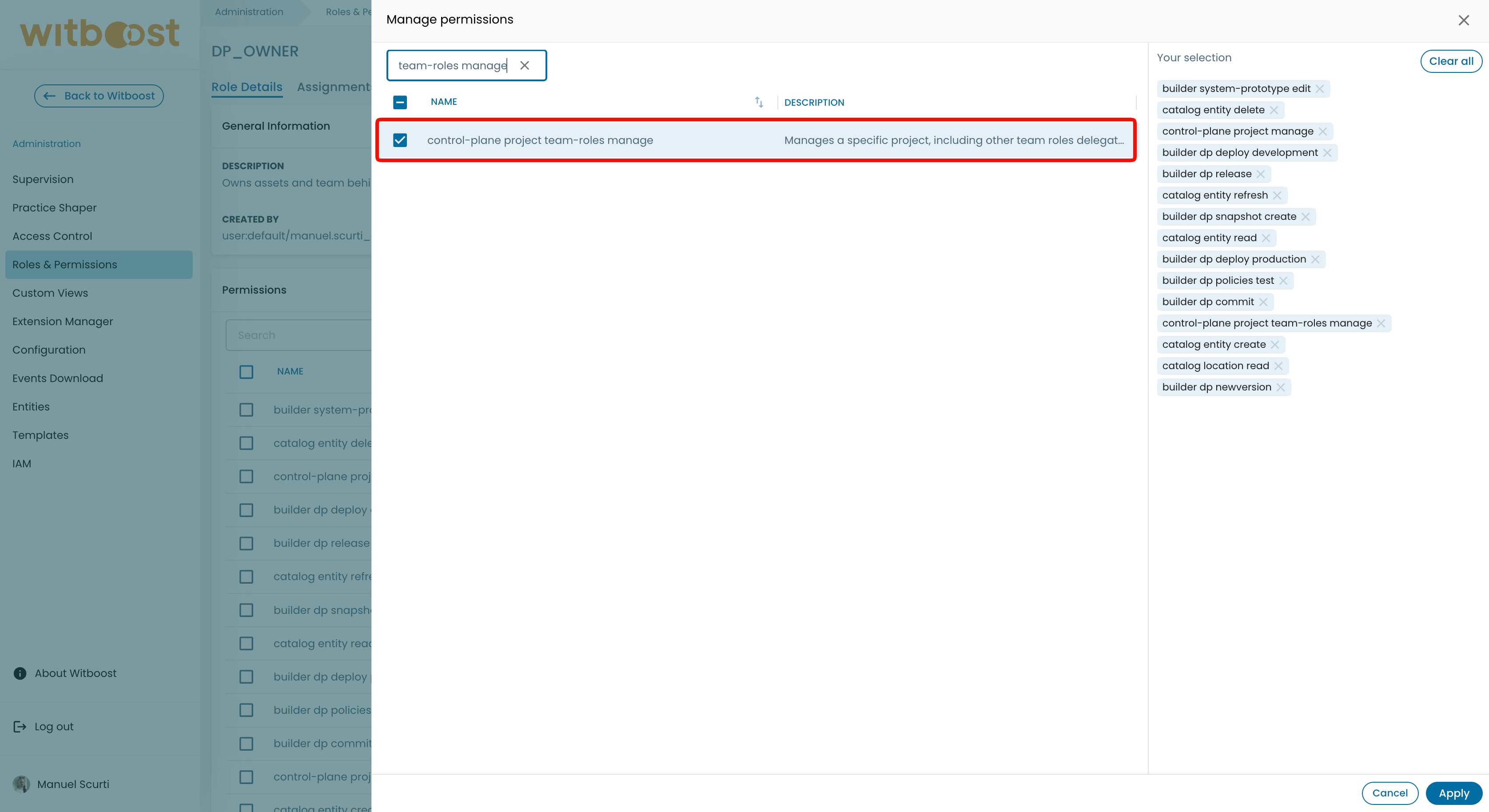
- Click on
Applyto confirm the changes.
Now let's do it again for the DP_DATA_ACCESS_MANAGER RBAC role, assuming you are still in the Roles & Permissions page:
- Click on the RBAC role you want to link to the Data Access Manager Team Role
- Click on Manage Permissions
- Add the
control-plane.project.manage-access - Click on
Applyto confirm the changes.
If you want or you need to create a dedicated RBAC role for a Team Role, make sure the RBAC role has the bare minimum list of permissions needed to navigate the Witboost UI as well as allowing the user to interact with the Project for which he/she has a Team Role assigned, plus the required permission for the specific Team Role.
Refer to the reference to know which are the bare minimum set of permissions.
Reference the RBAC roles in a System Type
The Team Roles configuration is defined at System Type level in the Practice Shaper, so the next step is to reference the RBAC roles we just configured in the System Type definition for Data Products.
To do this:
- Go into Administration > Practice Shaper > Graph
- Click on the System Type for which you would like to enable Team Roles
- A drawer will open up, click on the code repository button to open the Git repository where the System Type YAML configuration is stored
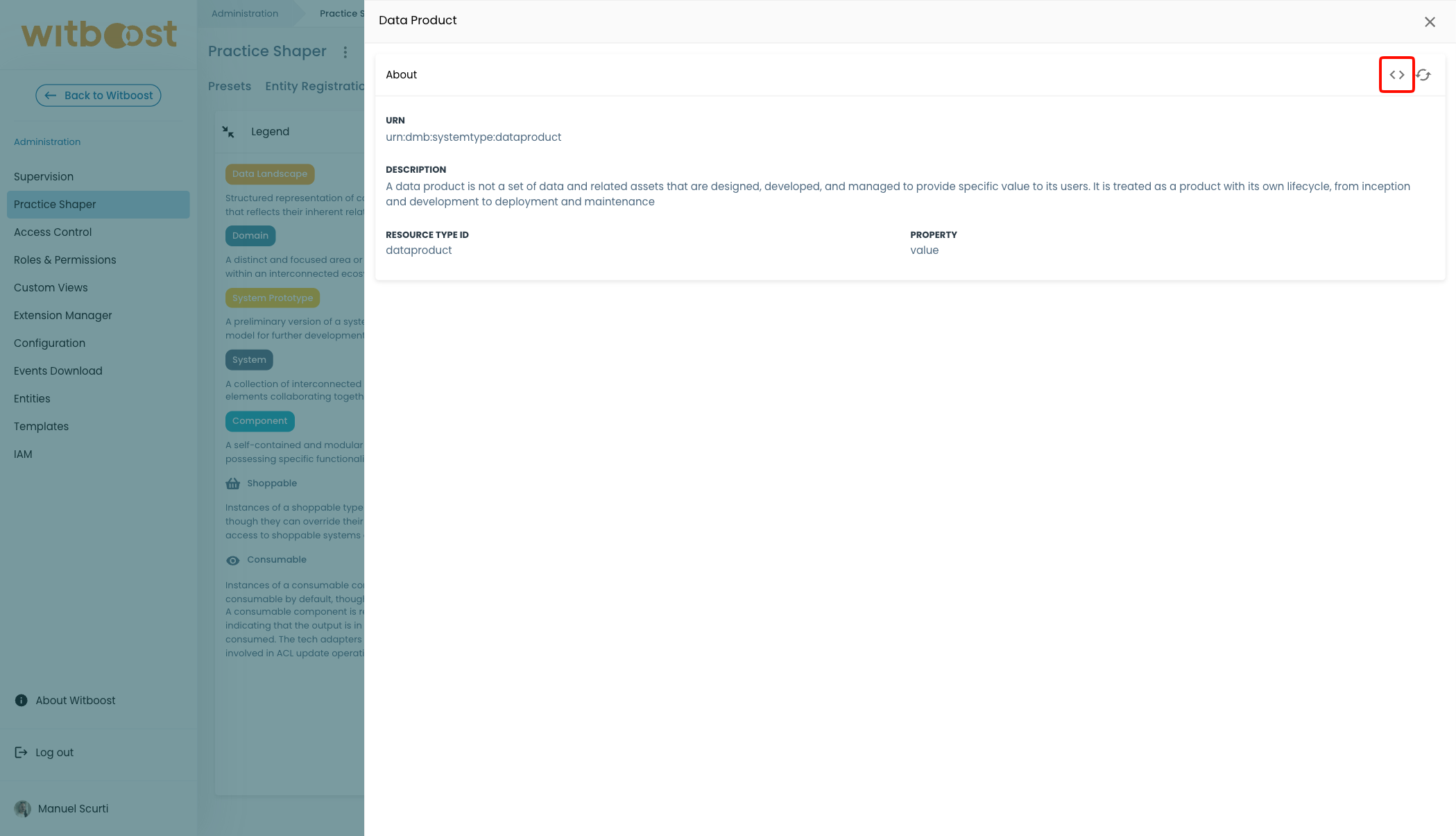
- Add the following configuration lines, in this example we are picking up the Data Product system type:
apiVersion: witboost.com/v2
kind: SystemType
metadata:
  name: dataproduct
  displayName: Data Product
  description: A data product is a set of data and related assets that are designed, developed, and managed to provide specific value to its users. It is treated as a product with its own lifecycle, from inception and development to deployment and maintenance
spec:
  resourceTypeId: dataproduct
  belongsTo: taxonomy:default/data-mesh-taxonomy
  partOfDomain: domaintype:default/business-domain
  # add the lines below
  isOwnedBy:
    assigneeRbacRole: DP_OWNER
  dataAccessGrantedBy:
    assigneeRbacRole: DP_DATA_ACCESS_MANAGER
As you can see each Team Role configuration is identified by a specific property key in the System Type configuration. Those configuration properties are resumed here.
When done, commit the changes on your Git repository and refresh the System Type definition on Witboost as follows:
-
Go back to the System Type drawer in the Practice Shaper
-
Click on the refresh button on the top right corner of the drawer
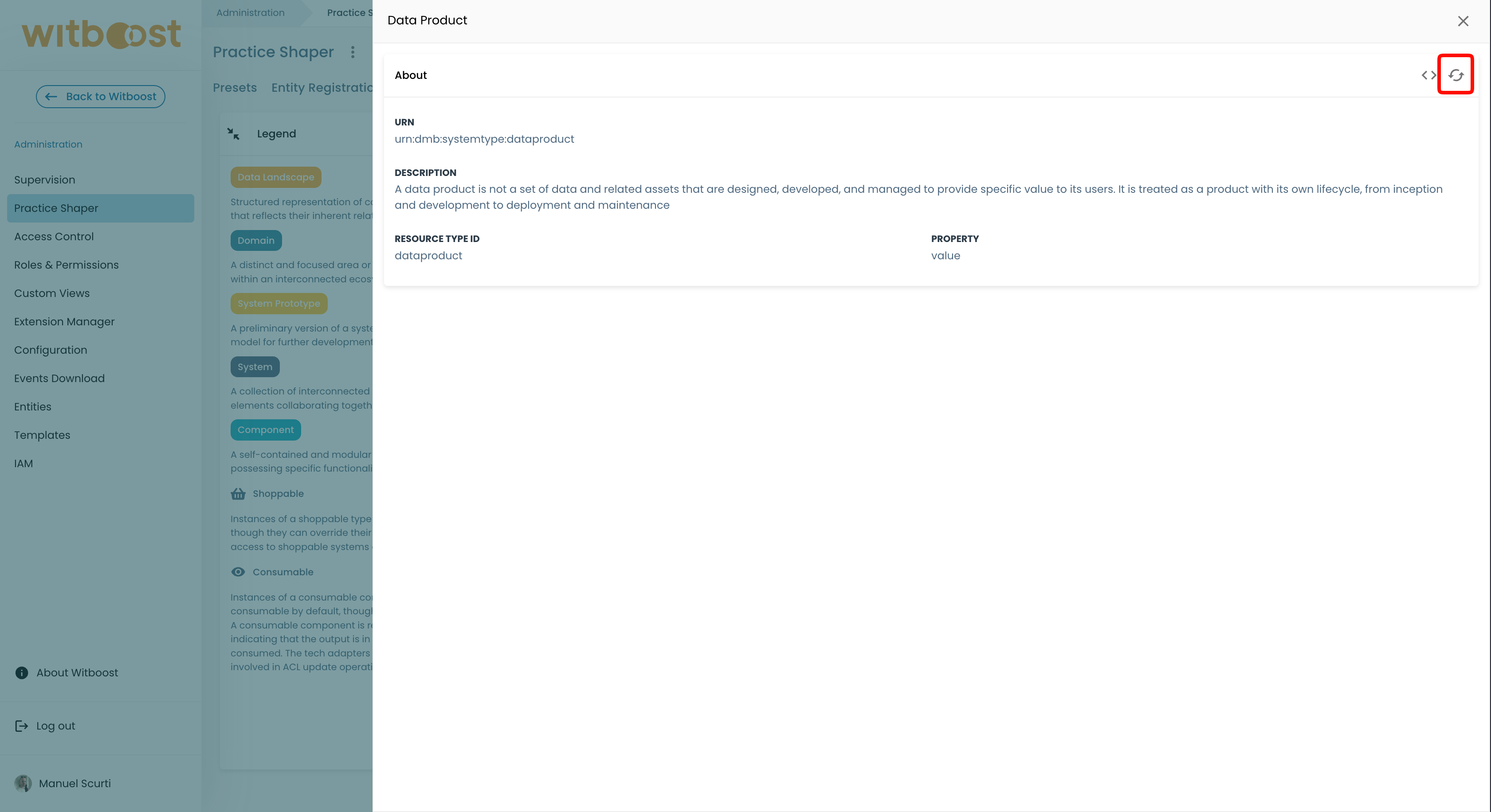
-
Close the drawer and click Refresh on the top right corner
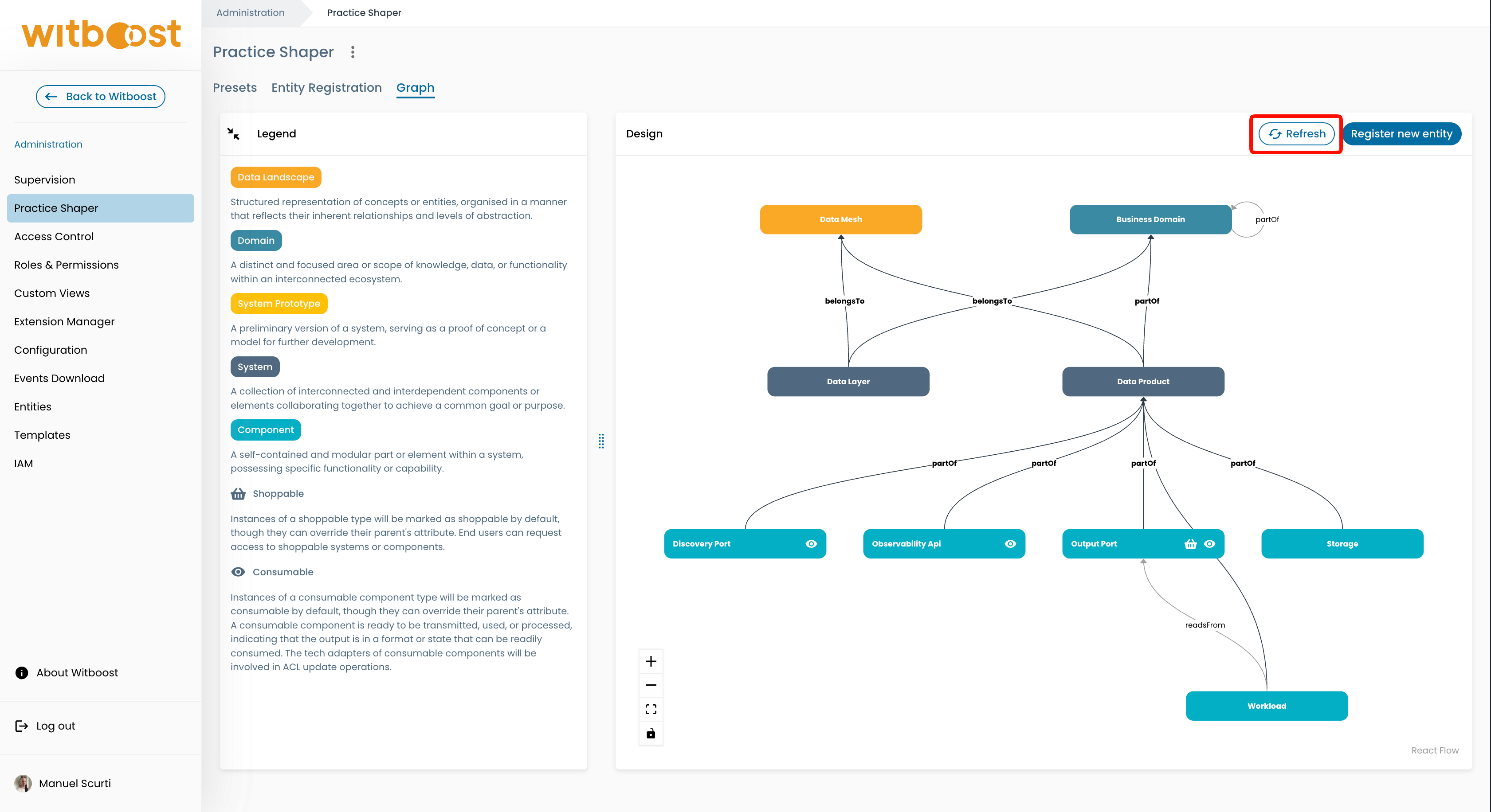
-
Click again on the System Type to open the drawer and check that the configuration details are showing up in the dedicated section for Team Roles.
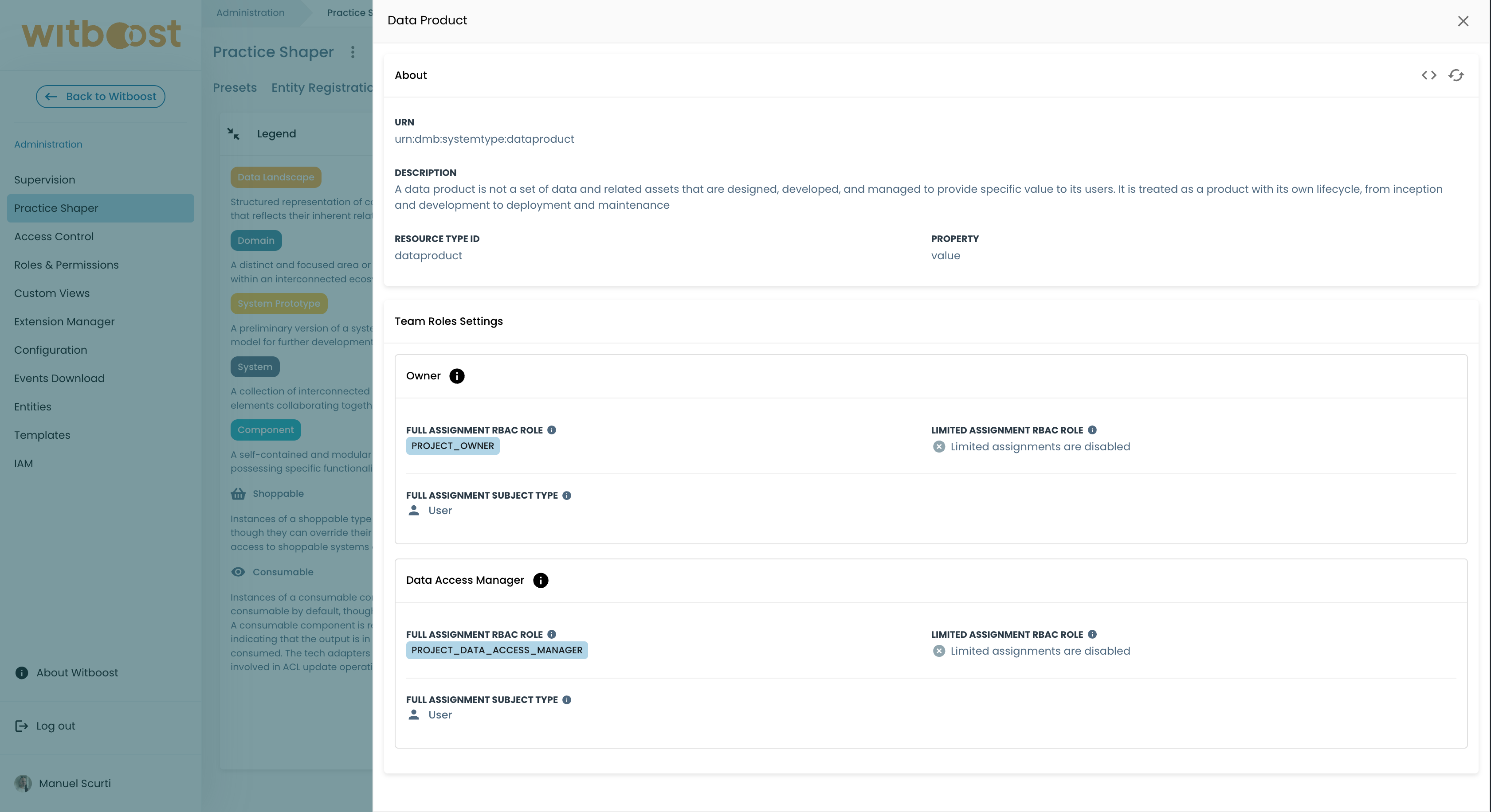
You can have different System Types with different configurations for the same Team Role. For example, you can decide that for Data Products the Owner Team Role is delegable, while for Agentic AI it is not. This way, you can have a more fine-grained control on which Team Roles are delegable for each project type.