How to enable limited delegation for a Team Role
By default, when you enable Team Roles for a System Type, the Owner Team Role is enabled with full delegation, which means that users assigned as Owners can assign/remove other users as Owners.
You can have users assign Team Roles in a limited delegation model. This is what has been explained when talking about Full vs Limited assignees.
You may want to enable this option if you want to give users the possibility to delegate the Owner team role in a limited manner. When a user is assigned as Limited Owner, he/she will have almost the same permissions as a Full Owner, but he/she will not be able to assign or remove other users as Owners, as explained here.
Prerequisites
- You have followed the basic Team Roles setup, as described here
How to enable limited delegation
During this tutorial, we will enable limited delegation for the Owner Team Role, but the same steps can be applied to the Data Access Manager role as well.
Link an RBAC role to a Team Role
To enable limited delegation for the Owner Team Role, we will need an RBAC role that have the control-plane.project.limited-manage-access permission.
The RBAC role used for the Limited Owner must be different from the one configured in the first introductory tutorial, because the RBAC role used for limited delegation must NOT have the control-plane.project.team-roles.manage permission. This is because users with the control-plane.project.team-roles.manage permission can assign/remove other users as Owners, which is not what we want for a limited owner.
Let's assign the missing permission control-plane.project.team-roles.limited-manage to the DP_OWNER_LIMITED RBAC role first:
- Go into Administration > Roles & Permissions
- Click on the RBAC role you want to link to the Owner Team Role
- Click on Manage Permissions
- Add the
control-plane.project.team-roles.limited-manage
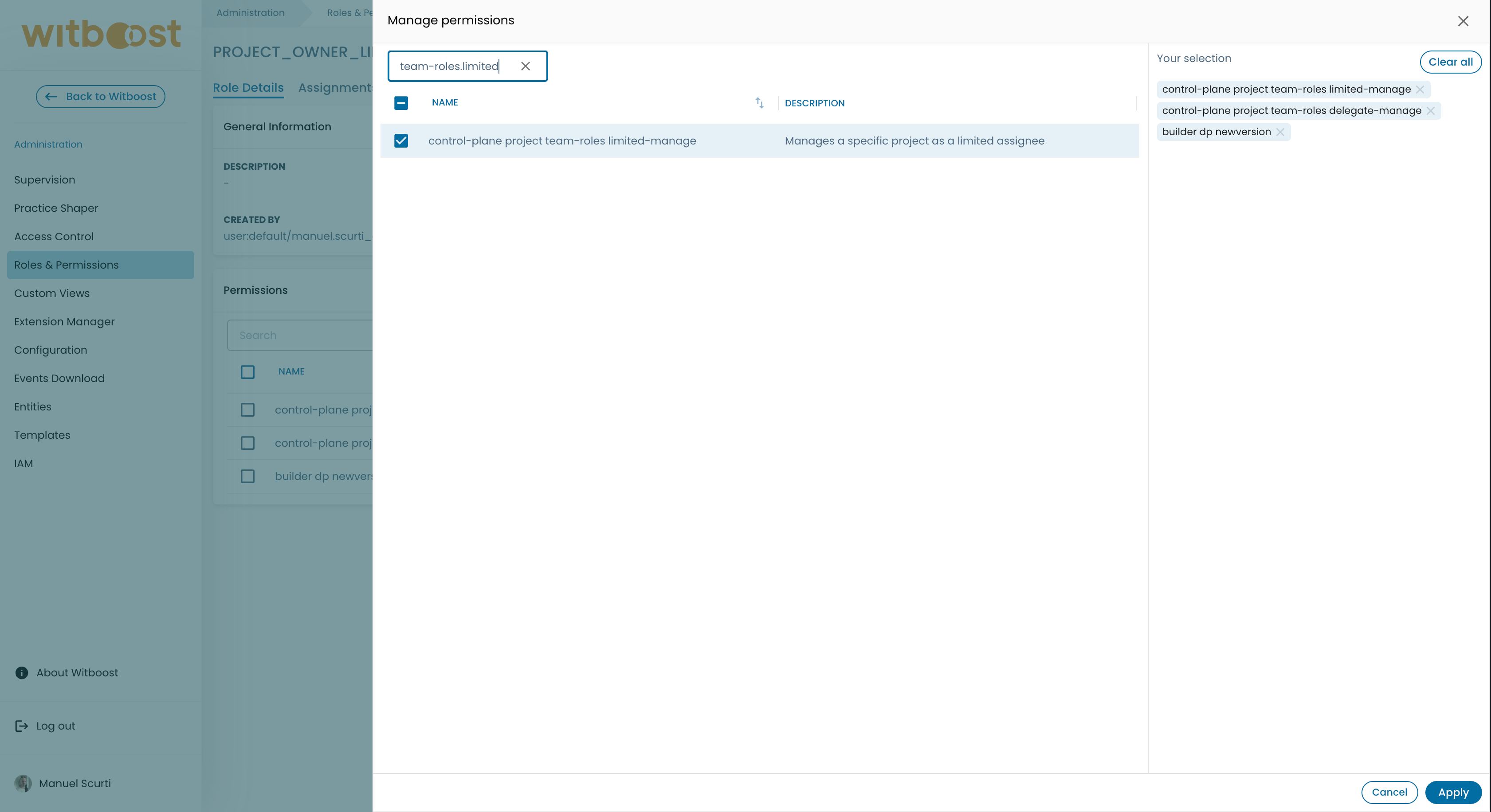
- Click on
Applyto confirm the changes.
If you want or you need to create a dedicated RBAC role for a Team Role, make sure the RBAC role has the bare minimum list of permissions needed to navigate the Witboost UI as well as allowing the user to interact with the Project for which he/she has a Team Role assigned, plus the required permission for the specific Team Role.
Refer to the reference to know which are the bare minimum set of permissions.
Update the System Type configuration
Now we want to link the previously configured RBAC roles to the Data Access Manager Team Role for Data Products.
To do this:
- Go into Administration > Practice Shaper > Graph
- Click on the System Type for which you would like to enable Team Roles
- A drawer will open up, click on the code repository button to open the Git repository where the System Type YAML configuration is stored
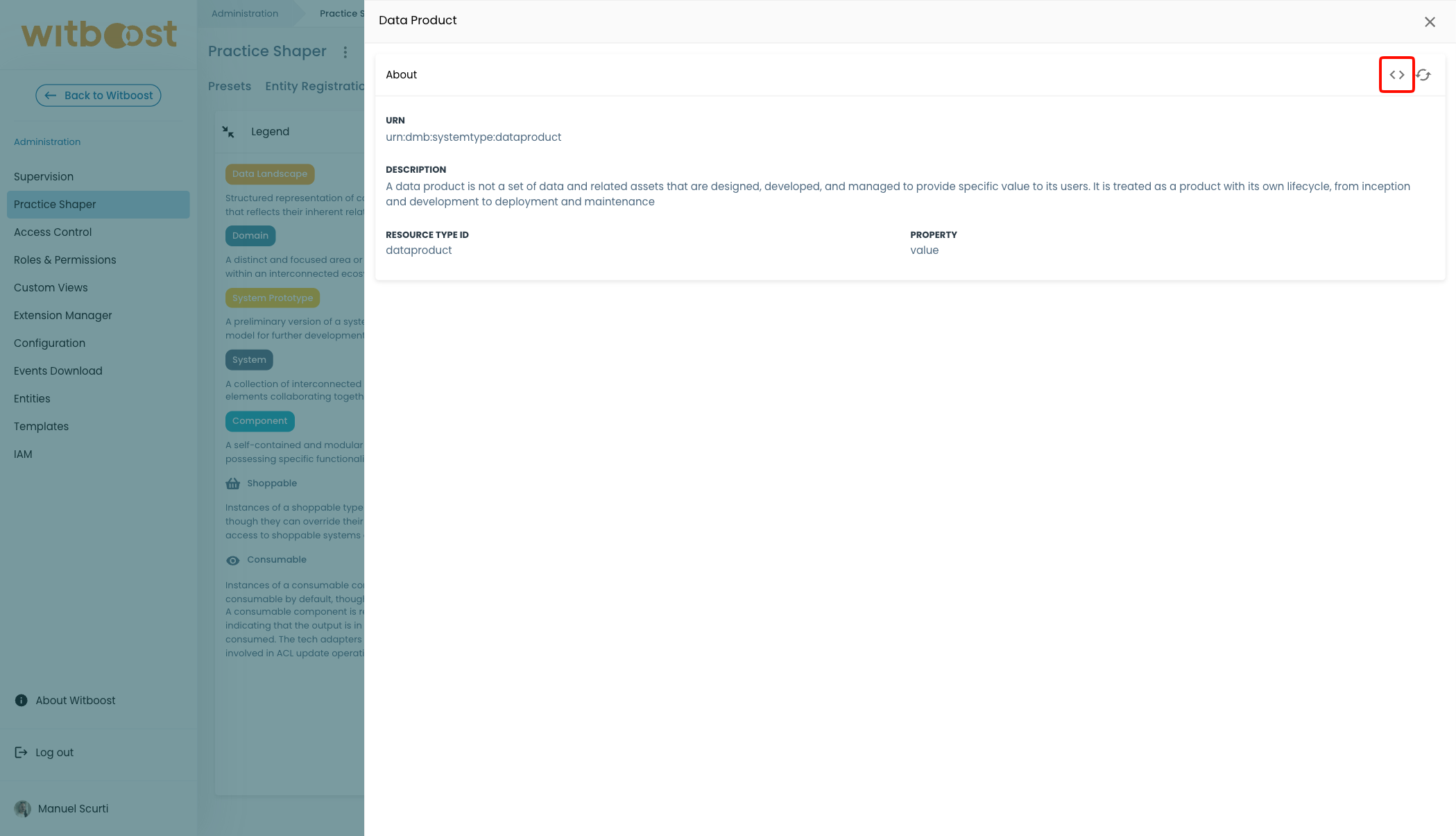
- Add the following configuration lines, in this example we are picking up the Data Product system type:
apiVersion: witboost.com/v2
kind: SystemType
metadata:
  name: dataproduct
  displayName: Data Product
  description: A data product is a set of data and related assets that are designed, developed, and managed to provide specific value to its users. It is treated as a product with its own lifecycle, from inception and development to deployment and maintenance
spec:
  resourceTypeId: dataproduct
  belongsTo: taxonomy:default/data-mesh-taxonomy
  partOfDomain: domaintype:default/business-domain
  isOwnedBy:
    assigneeRbacRole: DP_OWNER
    limitedAssigneeRbacRole: DP_OWNER_LIMITED # add this one
  dataAccessGrantedBy:
    assigneeRbacRole: DP_DATA_ACCESS_MANAGER
When done, commit the changes and refresh the System Type definition on Witboost. To refresh the System Type definition check how it's done here.
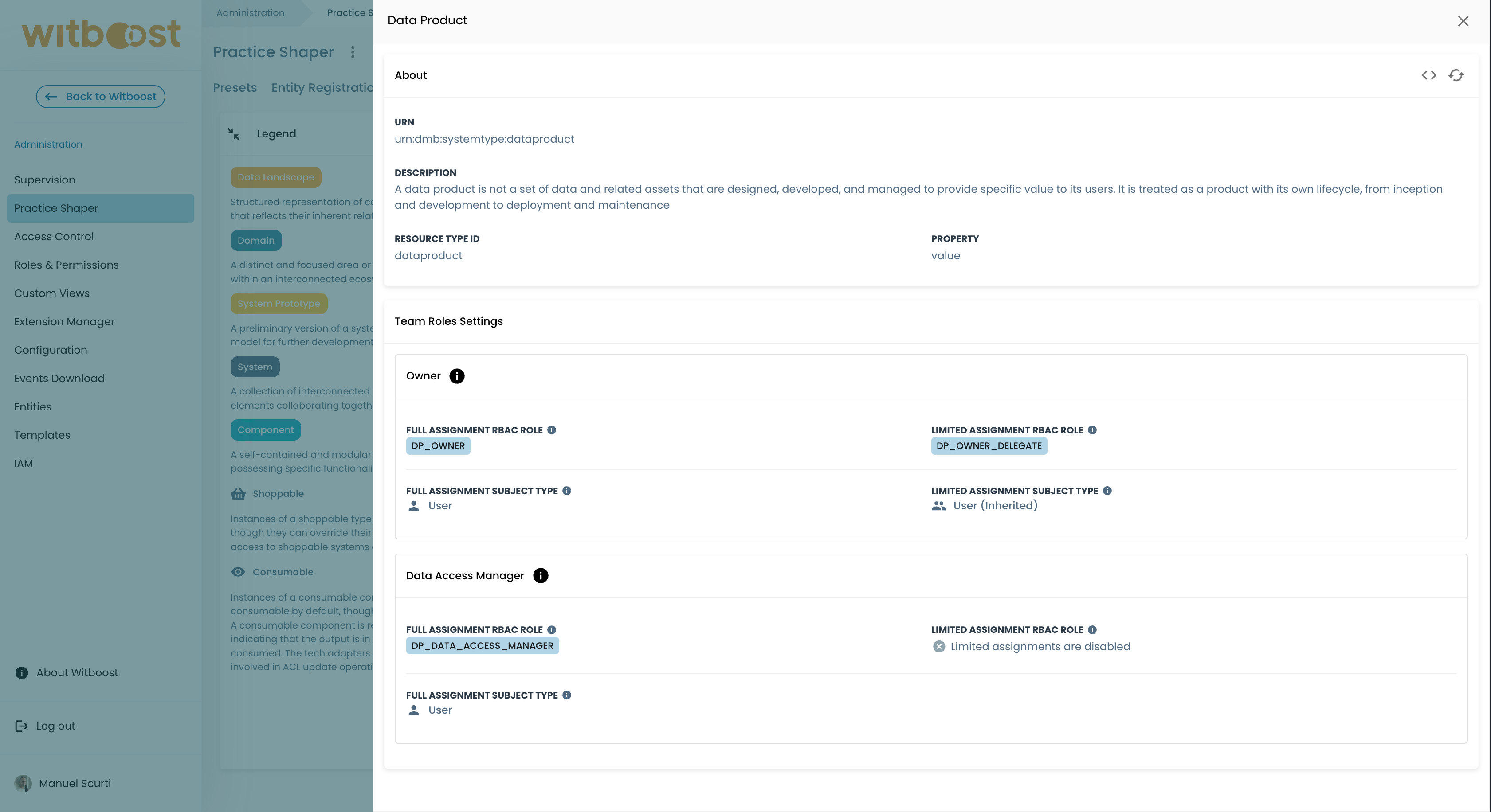
If everything is done properly and the System Type definition is up-to-date, you will notice the Owner Team Role configuration details shows up a new property in the drawer:
Limited delegation aspects
Limited delegation exist to ensure operational continuity without giving full accountabilities. This may help specifically for the Owner Team Role use-case, but expect to see it applied to other Team Roles in the future as well.
Here is a recap of all the differences:
| Aspect | Full | Limited |
|---|---|---|
| Mandatory | At least one full assignee must always exist (the last one cannot be removed) | May not exist; all limited assignments can be removed |
| RBAC role used | Uses the assigneeRbacRole defined in the SystemType (e.g. DP_OWNER) | Uses the limitedAssigneeRbacRole defined in the SystemType (e.g. DP_OWNER_LIMITED) |
| RBAC permission granted | Receives a dedicated permission (e.g. control-plane.project.team-roles.manage) | Receives a dedicated permission that is always different from the Full assignee (e.g. control-plane.project.team-roles.limited-manage) |
| Who can manage the Owner role | ✅ Can assign/remove Owner | ❌ Cannot manage Owner role assignments |
| Who can manage other roles | ✅ Can assign/remove Data Access Manager, etc. | ✅ Can assign/remove Data Access Manager, etc. |
As of now there are no functional distinctions between a Full Data Access Manager assignee and a Limited one. But expect this to evolve in future releases.