How to change assignments for a Team Role
In this section, you will find all the information you need to change assignments for a Team Role in your Project.
The objective of this tutorial is to:
- explain some constraints around changing assignments for Team Roles
- Provide a step-by-step guide to change assignments for a Team Role in your Project
Prerequisites
- Platform Team must have enabled Team Roles in Witboost
- Your Project must be onboarded in Team Roles. See the Onboarding section below for more details.
- You must be a Full Owner or Limited Owner (see here)
Delete an assignment for a Team Role
As an Owner or Limited Owner, you can delete an assignment for each Team Role. The steps to delete an assignment, from the Team Roles panel, are as follows:
-
On the left side, click on the Team Role for which you would like to edit assignments
-
On the right side, click on the
Deletebutton next to the assignment you want to delete.
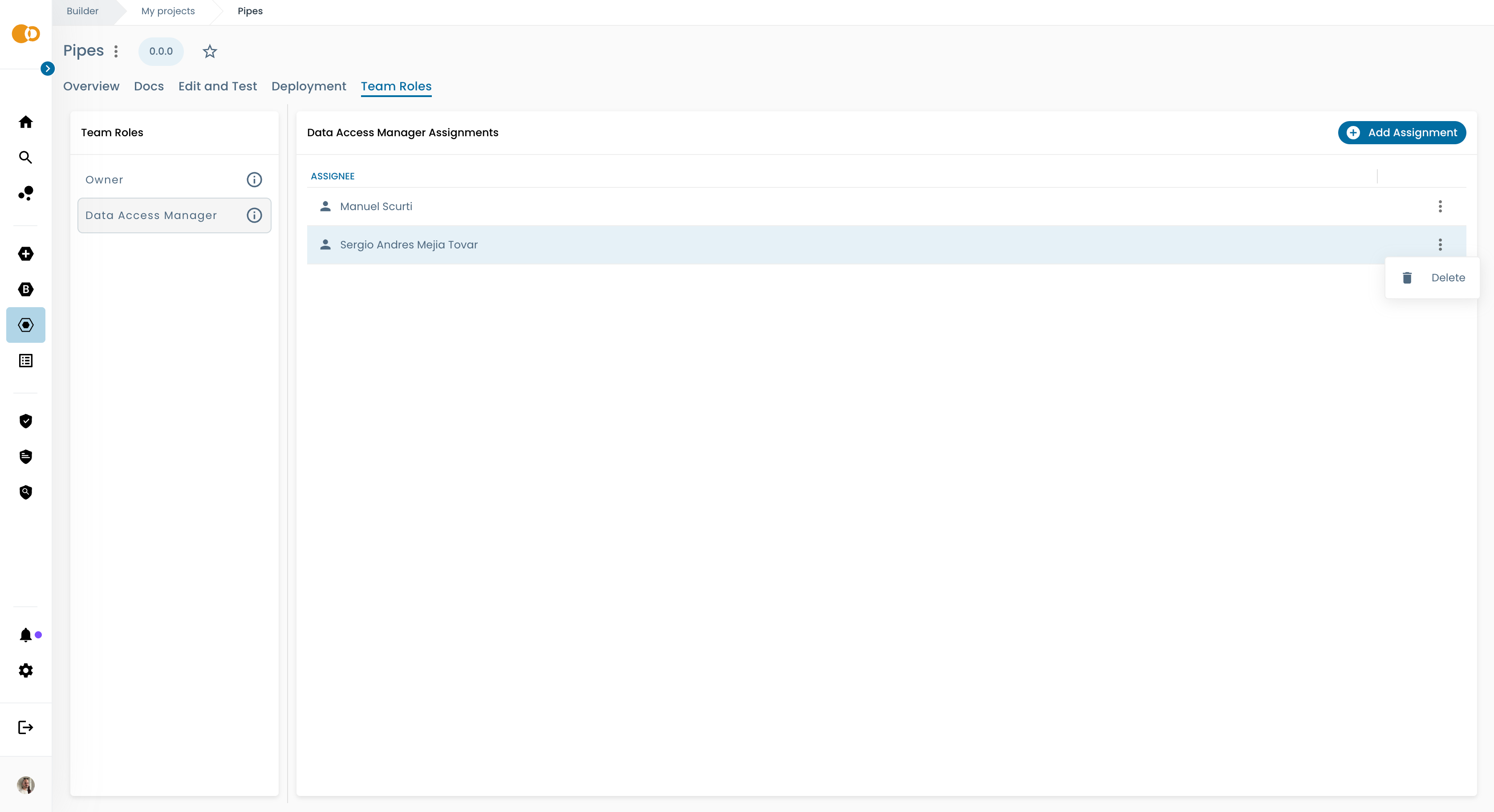
- Confirm the deletion by clicking on the
Deletebutton in the confirmation pop-up.
You won't be able to delete an assignment if it's the last assignee for that role. If you wish to change the assignee, you can first add a new assignment for that role and then delete the previous one.
Deploy and publish a descriptor update to reflect Team Roles changes in external systems
When you change Team Roles assignments, the project descriptor published in the Marketplace or in external Data Catalogs may become outdated, since the projectOwner field in the descriptor is based on the last published version and it may not reflect the current Team Roles configuration.
To update the project descriptor with the current Team Roles configuration, a new release of the project must be created and deployed. This way Witboost will deploy the updated version of the descriptor with the correct projectOwner and external systems will be updated accordingly.
The process of creating a new release is described here.