How to delegate the Owner Team Role
In this section, you will find all the information you need to delegate the Owner Team Role for your Project.
The objective of this tutorial is to:
- explain the difference between a Full vs Limited delegation
- Provide a step-by-step guide to delegate the Owner role in your Project, which, as of now, is the only use-case for limited delegation
Prerequisites
- Platform Team must have enabled Team Roles in Witboost
- Your Project must be onboarded in Team Roles. See the Onboarding section below for more details.
- You must be the Owner of the project
- The Owner Team Role must be enabled by the Platform Team and is configured to have limited delegation.
Assign someone as Limited Owner for a Team Role
The steps to set a Limited Owner, from the Team Roles panel, are as follows:
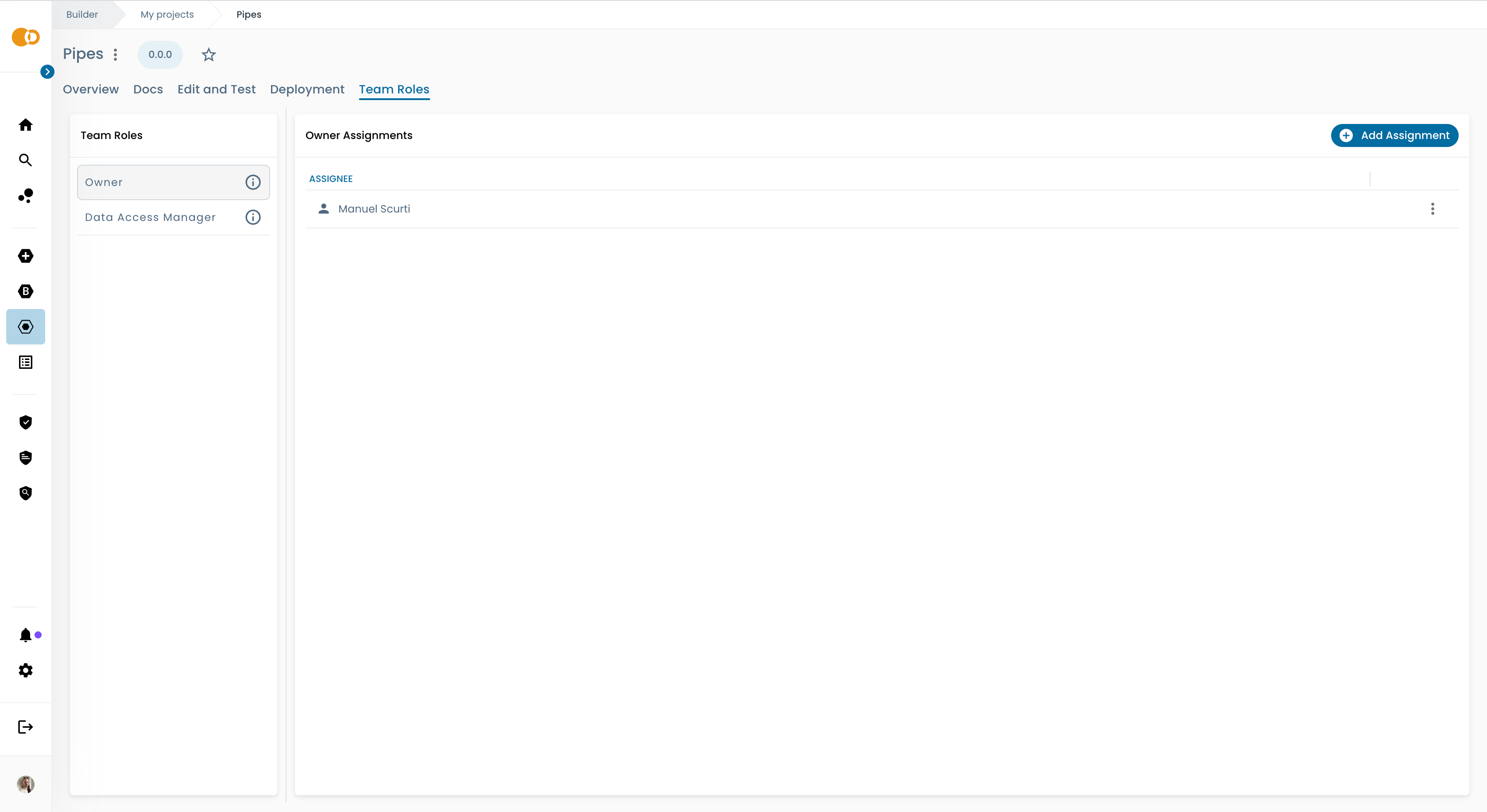
- On the left side, click on the Team Role for which you would like to edit assignments
-
On the right side, click on the
Add assignmentbutton in the upper right corner of the panel -
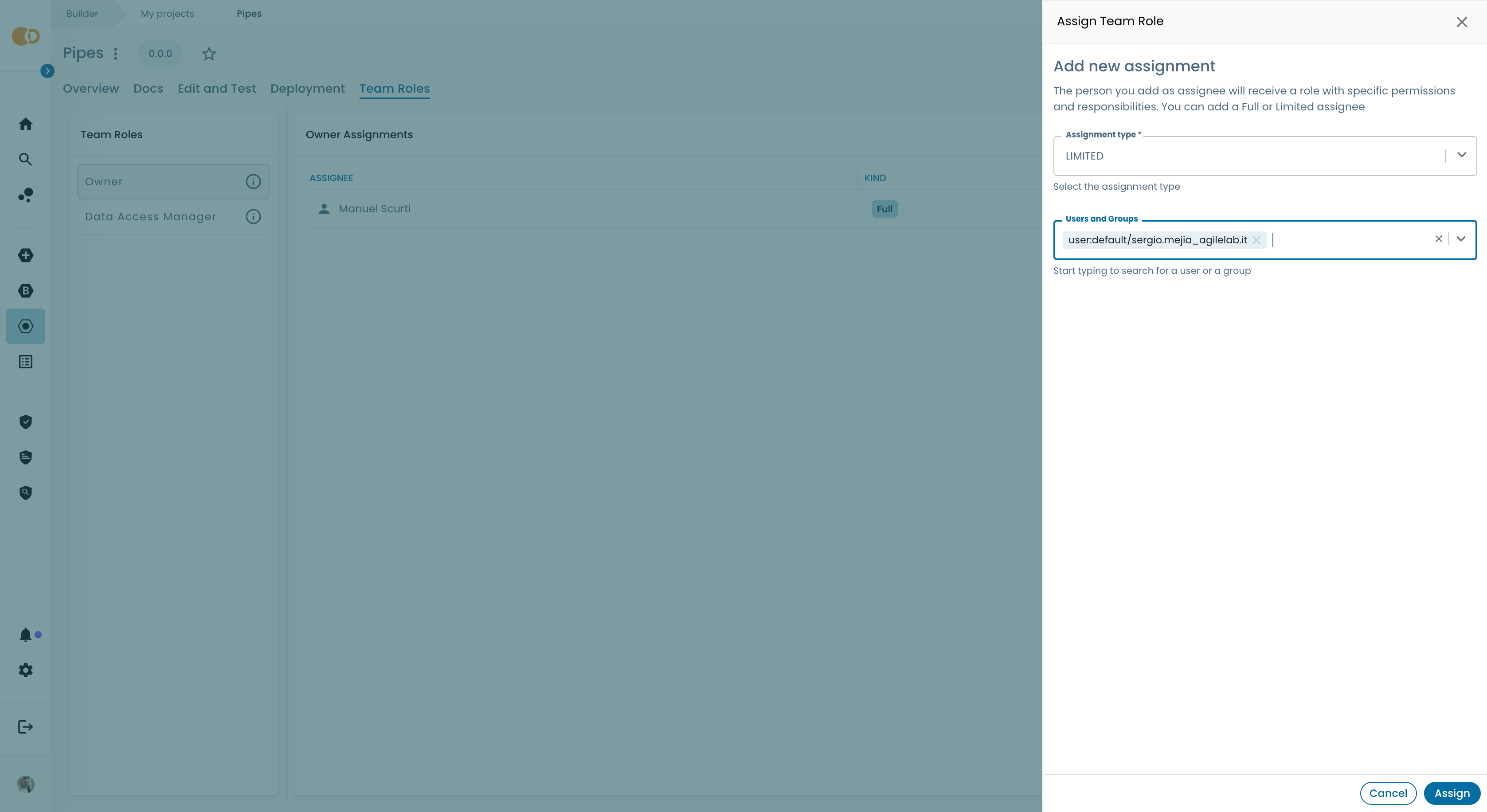
A drawer will open. Set Limited as Assignment Type. Then pick a user. Finally, click on the
Assignbutton to confirm.
warning
There cannot be Team Roles with no Full assignees. So if you see the Limited option disabled, this means that there is no Full assignee for that role. In this case, you need to first assign a user as Full assignee and then you will be able to assign other users as Limited assignees.